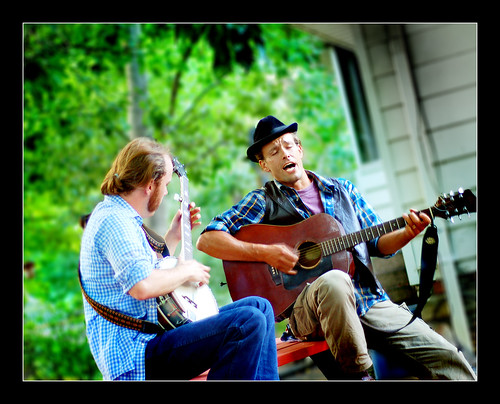
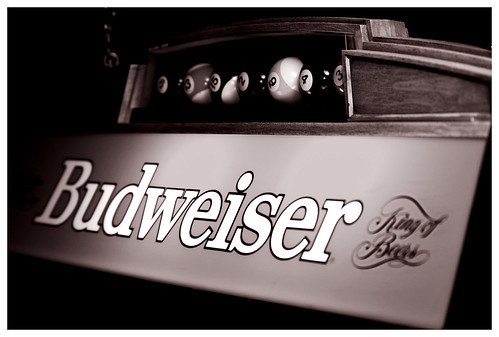
Today I will show you one of my new favorite techniques - the lens blur filter. Of course, one way to achieve that awesome depth of field is through the camera. But if you have no clue what aperture is, or don't have time to fool with those pesky manual settings while tearing around after your crazy three year old with your camera, Photoshop has just what you need: Lens Blur Filter!
Lens Blur Filter Instructions:
1. Open the image you want to adjust.
2. In the Channels Palette add an alpha layer.
3. With the alpha channel selected, use the eraser with the foreground set to black to erase the areas of the picture you wish to blur. Hint: anything the same distance from the camera as your subject you may not wish to blur, if you want to achieve a more realistic effect.
4. With the RBG channel selected, go to Filter--> Blur--> Lens Blur, select your alpha channel in the Source pop-up menu, and then adjust the blur focal distance slider until you see get the effect you want in the preview window. Apply.
5. Delete alpha channel and viola!
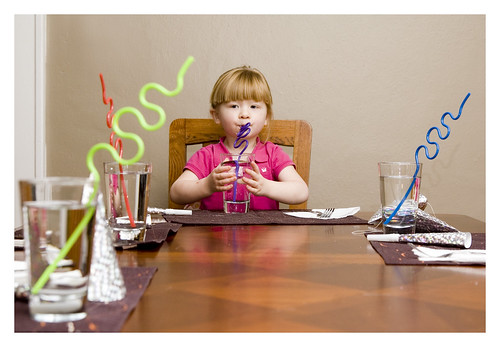
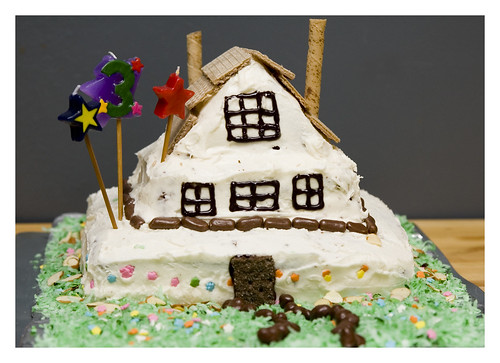
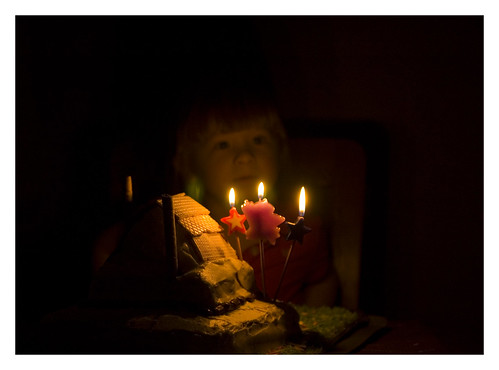
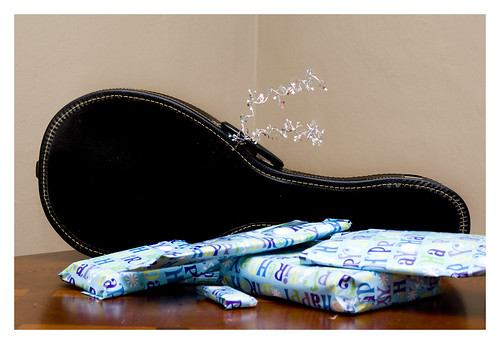
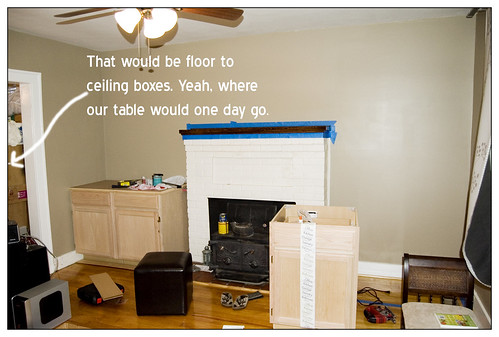
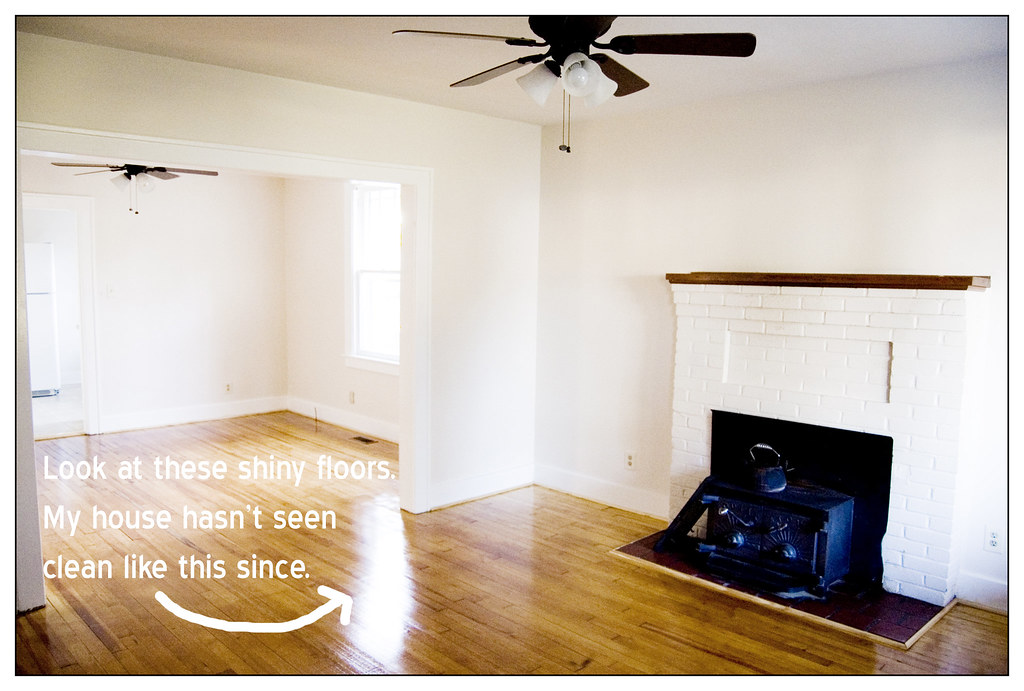
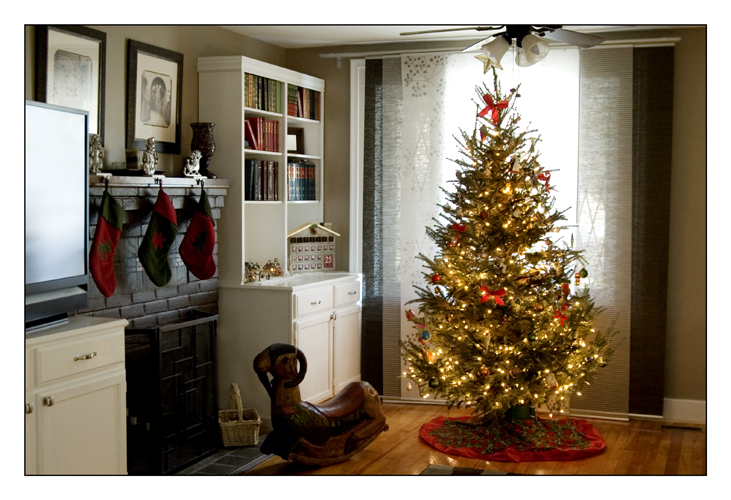
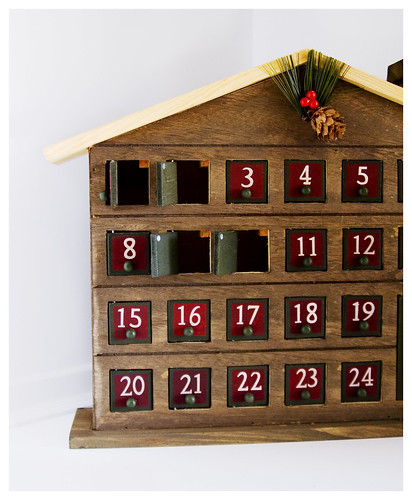
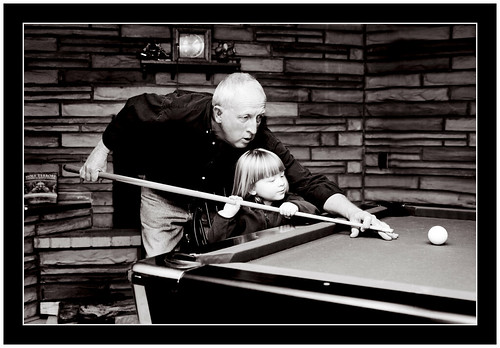
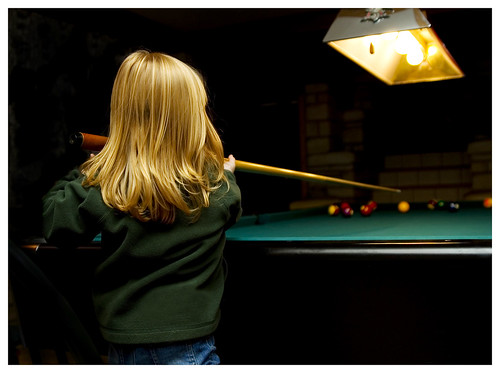
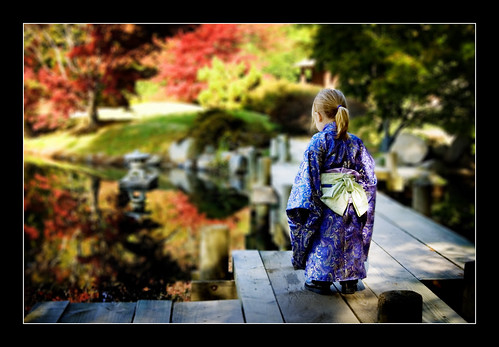
Here are some samples.
Before:
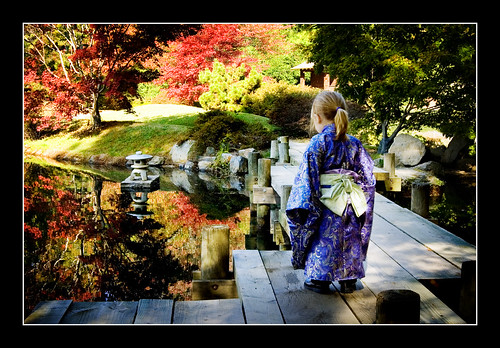
After:
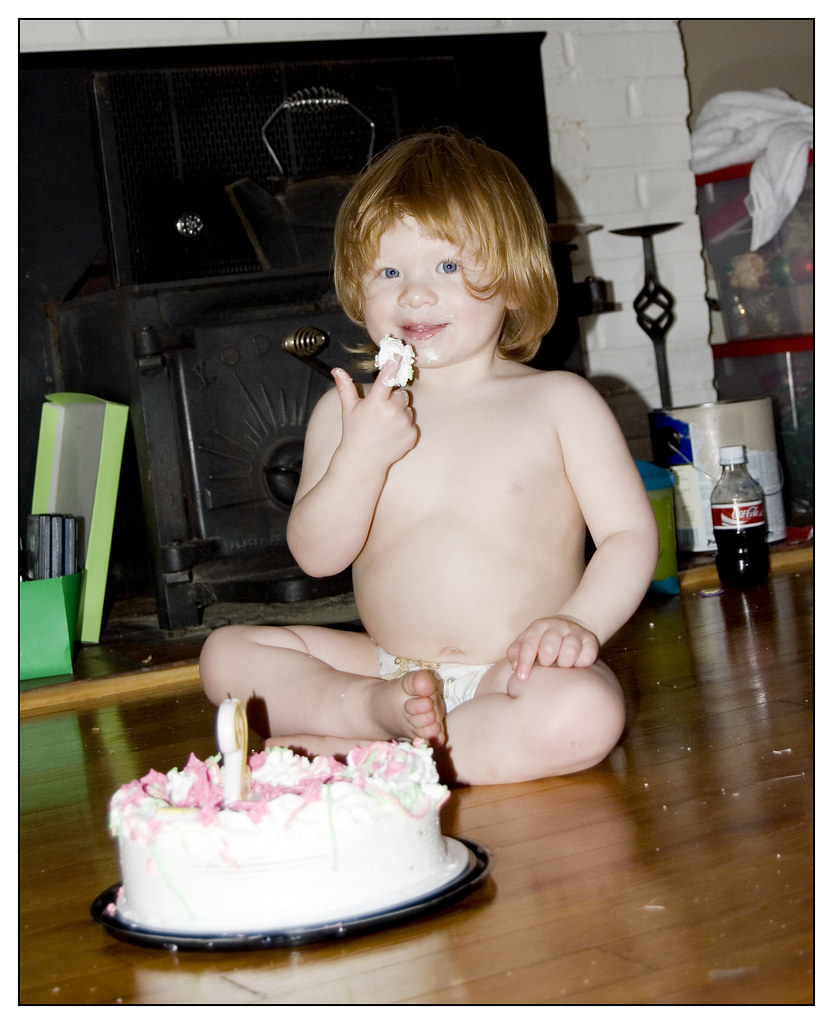
Before: (this one is straight from the camera)

After: (lens blur as well as some contrast and saturation adjustments)